Hackatime Setup Guide
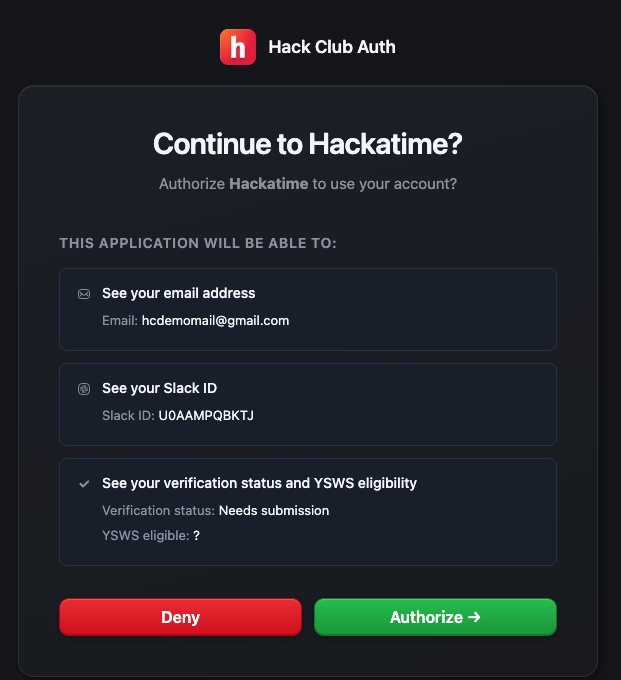
Step 1: Sign In
- Go to hackatime.hackclub.com
- Click the Sign in with your Hack Club account button

- Click Authorize to grant permissions
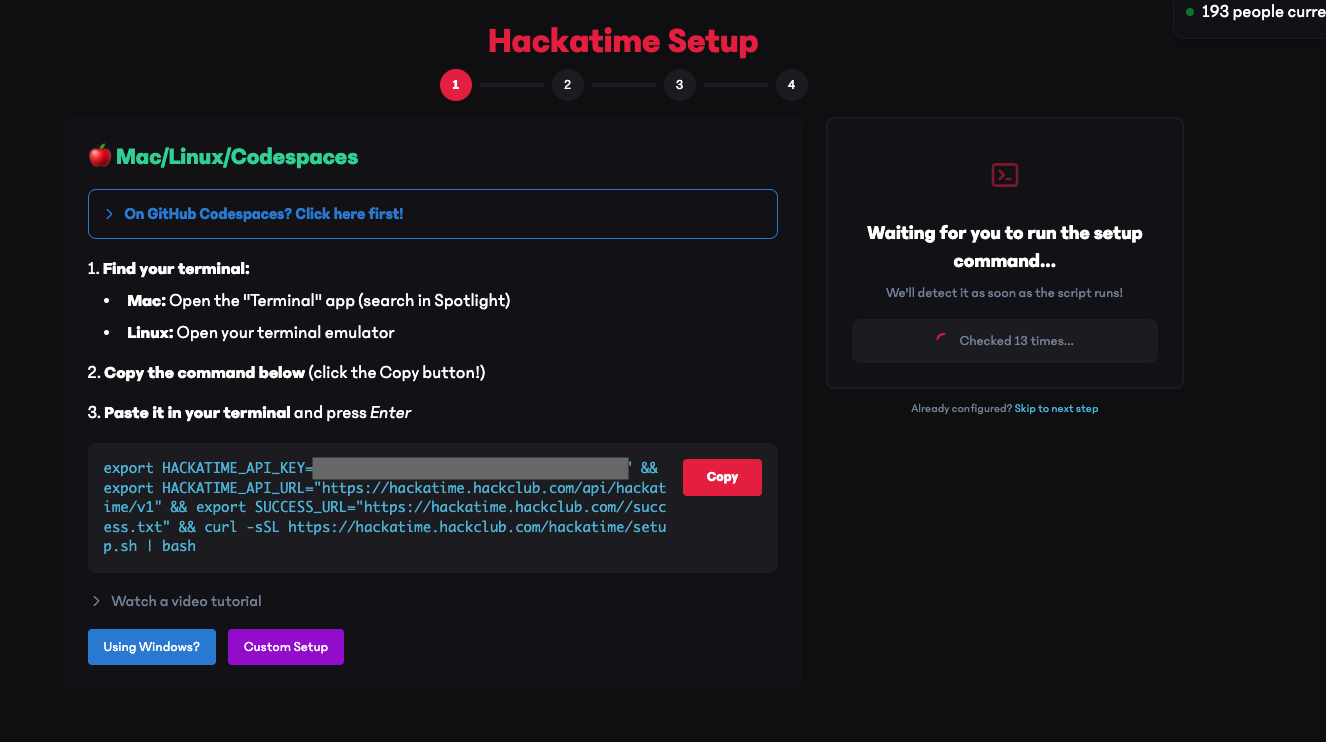
Step 2: Terminal Setup
- Copy the command displayed on your webpage
- Paste it into your terminal and run it
- Go back to the Hackatime webpage
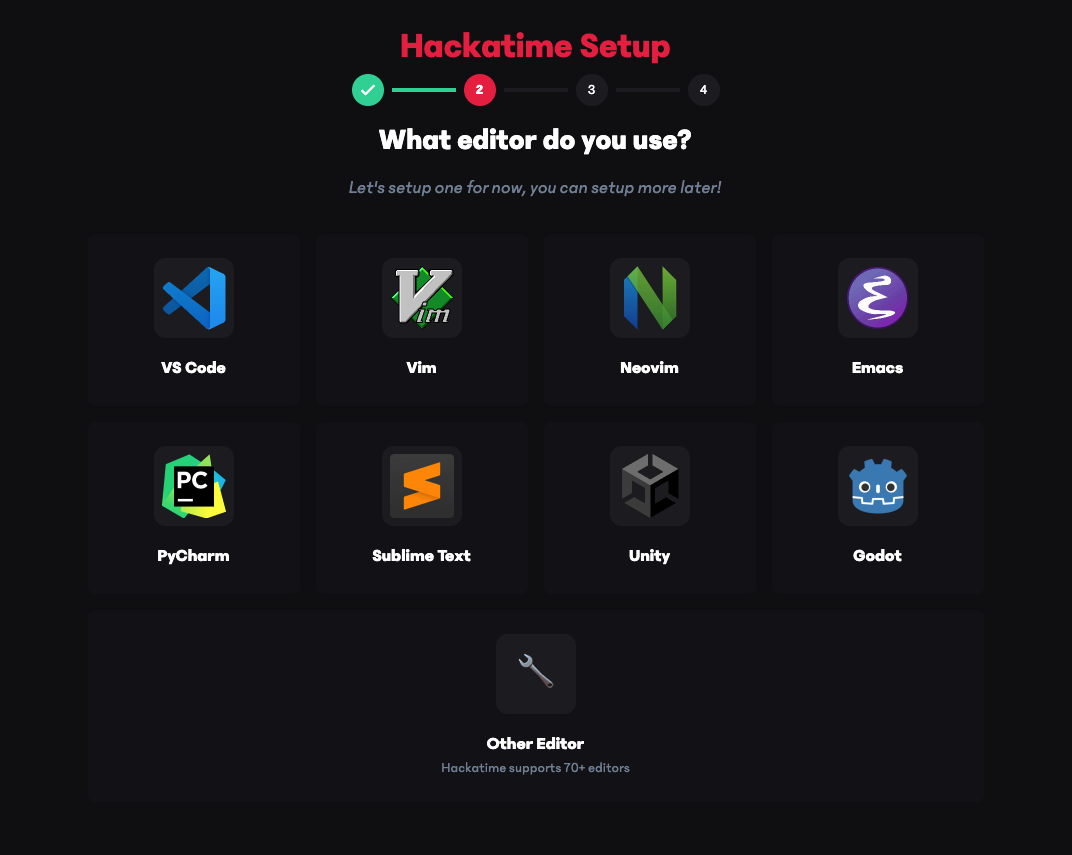
Step 3: Editor Selection
- Once the website lets you proceed, go to the second setup step
- Select your editor (this tutorial uses VS Code as an example)
Step 4: Installing the WakaTime Extension
Download the WakaTime extension for your selected editor
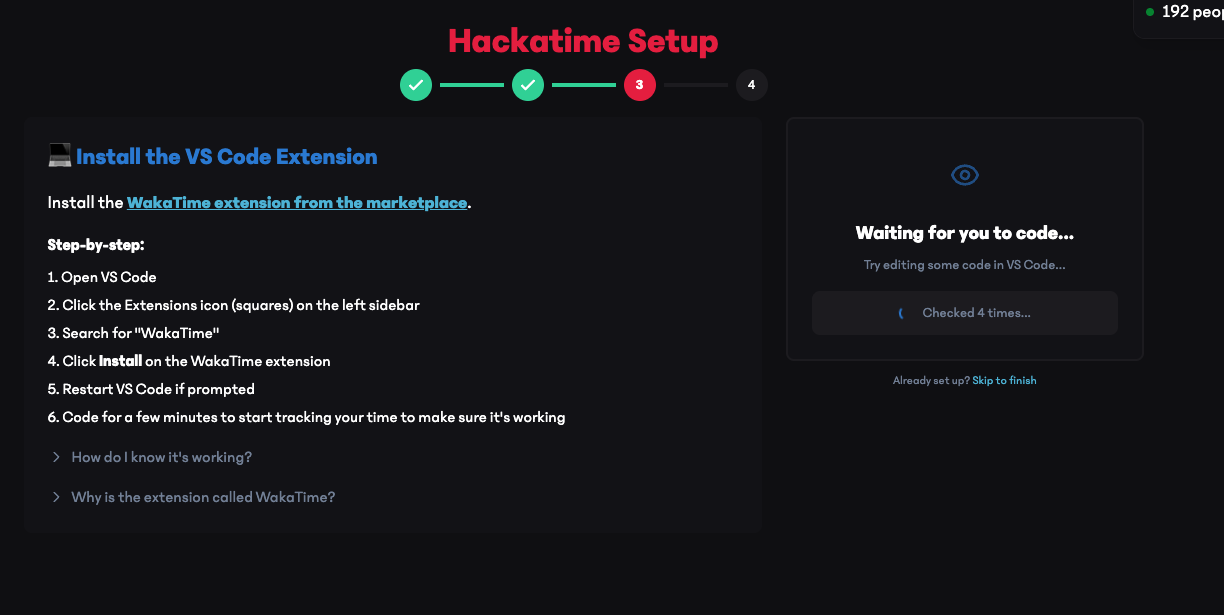
- Open your editor (VS Code in this example)
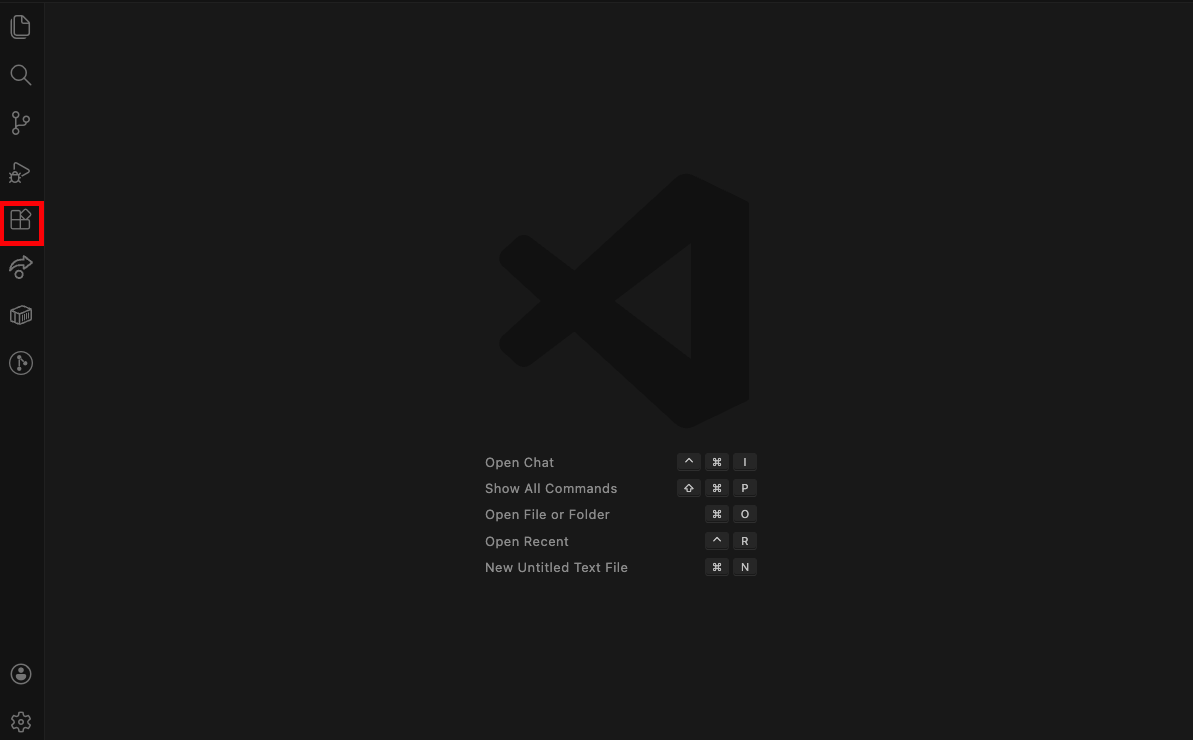
- Find and click the Extensions icon in the sidebar
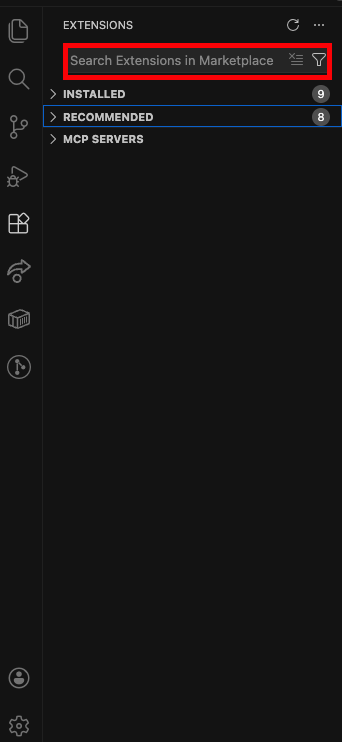
- Search for "wakatime" in the search bar
- Click on the first result and click Install
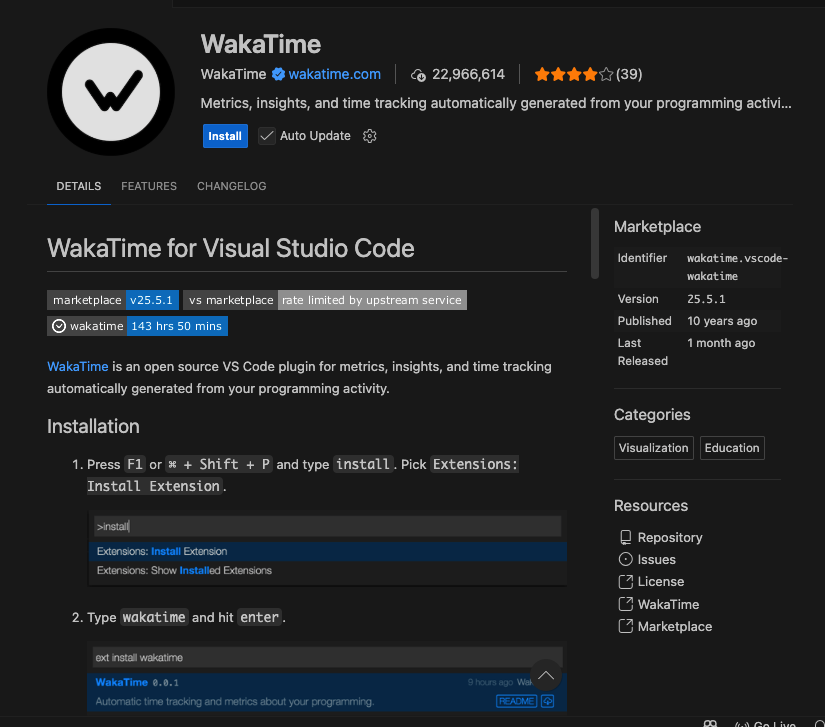
- Start coding! After a few minutes, you should see a timer appear on the bottom toolbar
Step 5: Complete Setup
- Go back to the Hackatime website and proceed to the next step
- Check the I agree I understand the rules box
- Click the Done button
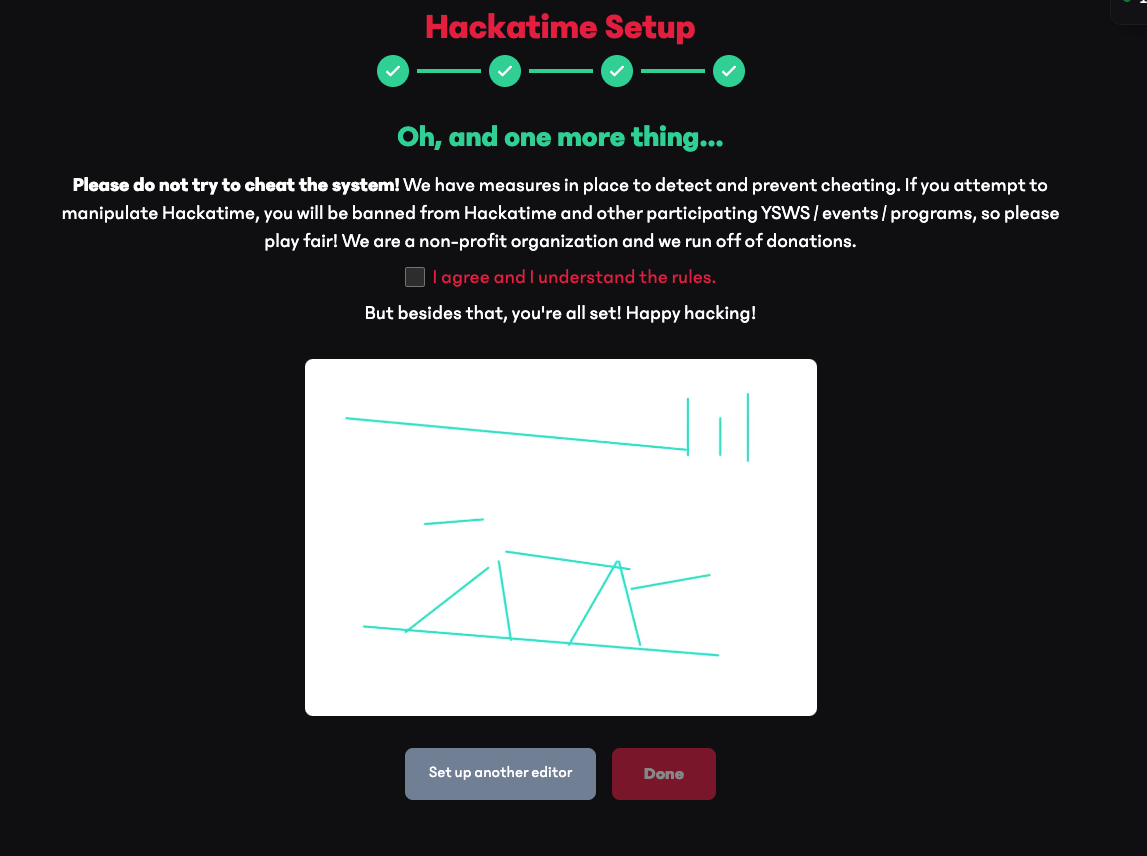
Congratulations! You've successfully set up Hackatime and can now start tracking your coding time.
Hackatime Beállítási Útmutató
1. lépés: Bejelentkezés
- Látogass el a hackatime.hackclub.com oldalra
- Kattints a Sign in with your Hack Club account gombra
- Kattints az Authorize gombra a jogosultságok megadásához
2. lépés: Terminál Beállítás
- Másold ki a weboldalon megjelenő parancsot
- Illeszd be a terminálba és futtasd le
- Térj vissza a Hackatime weboldalra
3. lépés: Szerkesztő Kiválasztása
- Miután a weboldal engedélyezi a továbblépést, menj a második beállítási lépéshez
- Válaszd ki a szerkesztődet (ez az útmutató VS Code-ot használ példaként)
4. lépés: WakaTime Bővítmény Telepítése
Töltsd le a WakaTime bővítményt a kiválasztott szerkesztődhöz
- Nyisd meg a szerkesztődet (ebben a példában VS Code)
- Keresd meg és kattints a Bővítmények ikonra az oldalsávban
- Keress rá a "wakatime" kifejezésre a keresősávban
- Kattints az első találatra és kattints a Install gombra
- Kezdj el kódolni! Néhány perc elteltével egy időzítőt kell látnod megjelenni az alsó eszköztáron
5. lépés: Beállítás Befejezése
- Térj vissza a Hackatime weboldalra és lépj tovább a következő lépésre
- Jelöld be a Megértettem és elfogadom a szabályokat jelölőnégyzetet
- Kattints a Done gombra
Gratulálunk! Sikeresen beállítottad a Hackatime-ot és most már követheted a kódolási idődet.